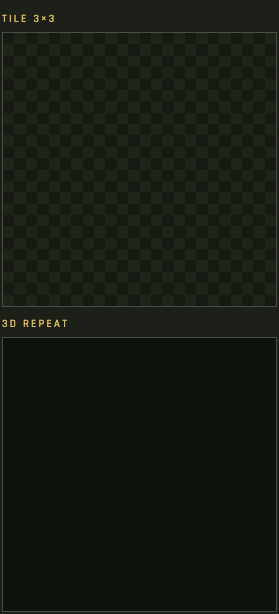
Texture BEST is a pixel editor for tiling game textures. Raster, shape, and image layers live on one canvas. A 3×3 tile view and a rotating cube show how the texture repeats.
The editor runs in the browser. Files are not uploaded. The Replicate key, palettes, theme, and autosave stay on this machine.
What you keep
JSON is the project format: layers, opacity, blend, palette, guides, size. PNG / JPEG / WebP / BMP flatten to a single image. JPEG, WebP, and BMP cannot store transparency — a transparent background is filled with the panel color on export.
Autosave
Each edit writes the project to local storage. Reloading the page restores that snapshot. New starts a blank document and overwrites the autosave on the next edit.
The editor: tools, canvas, inspector
Workspace
Four strips around the canvas:
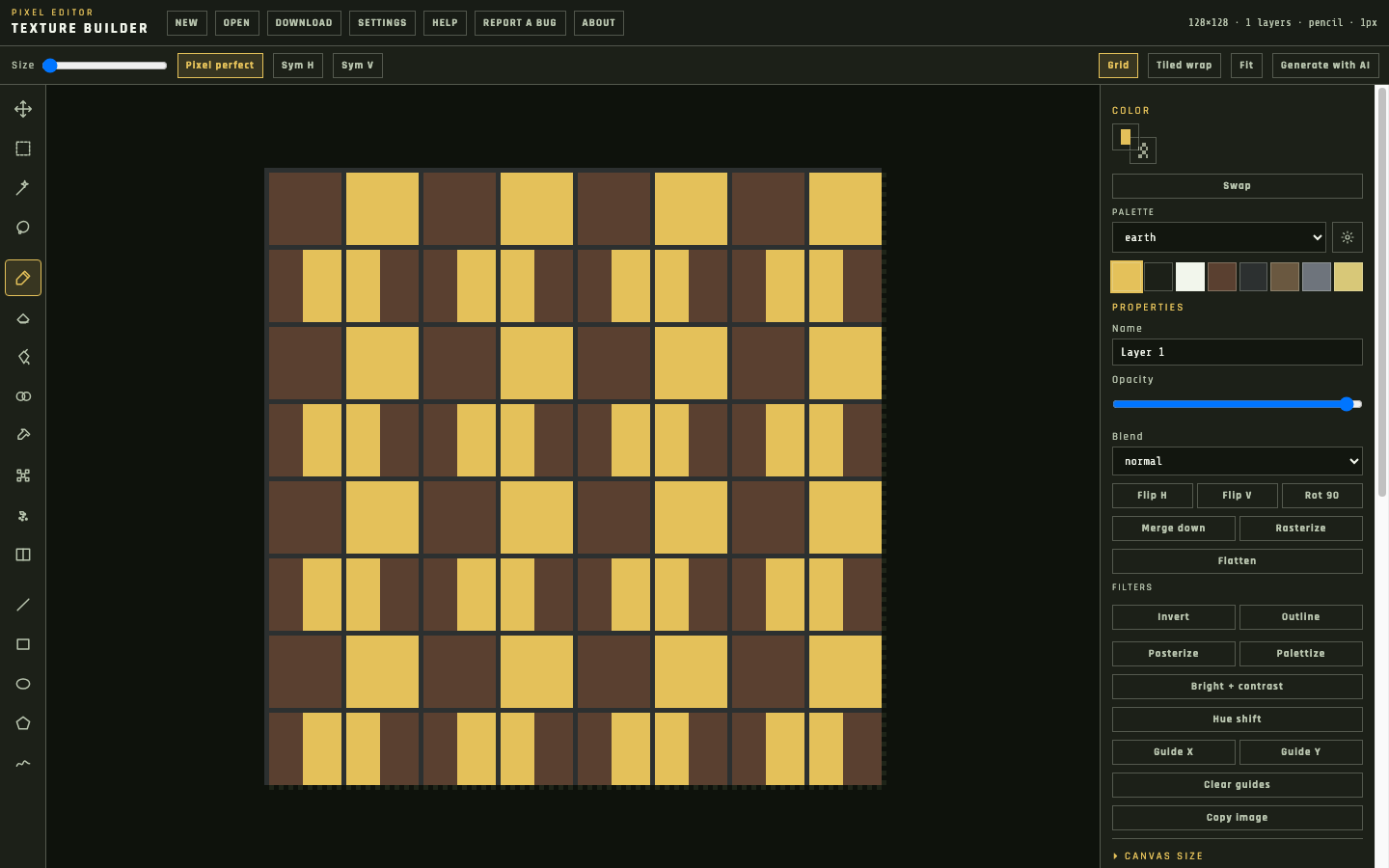
Top bar — New, Open, Download, Settings, Help, Report a bug, About. The right side shows size, layer count, tool, and brush.
Options bar — controls for the current tool, plus Grid, Tiled wrap, Fit, and Generate with AI.
Left — tools, split into select, paint, and shape.
Right inspector — Color, Properties, Canvas size, Layers, Tile 3×3, 3D repeat.
Bar, options, tools, canvas, inspector
Tool names
Hover a tool for its name and shortcut. Recolor, Dither, Spray, Gradient, Polygon, and Contour have no letter shortcut.
Move V Select M Wand W Lasso O Pencil B Eraser E Fill G Eyedropper I Line L Rectangle U Ellipse Shift+U Recolor Dither Spray Gradient Polygon Contour
Left rail — same icons as above
Files
New
Replaces the open document with a 128×128 blank raster. There is no confirm dialog. Undo does not bring the previous file back; history resets.
Open
JSON loads as a project. PNG, JPEG, WebP, GIF, or BMP becomes an image layer, scaled down if it is larger than the canvas. You can also drop a file onto the canvas or paste an image (or JSON text) from the clipboard.
Download
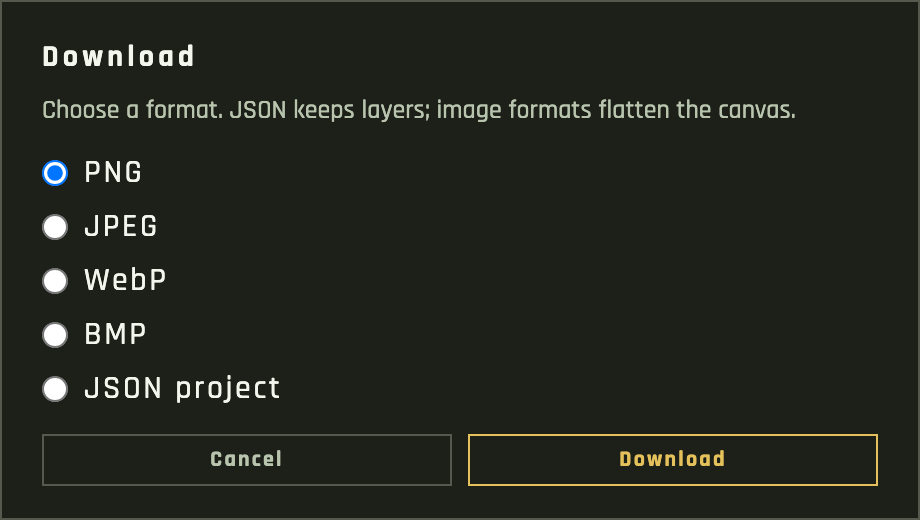
Pick PNG, JPEG, WebP, BMP, or JSON project. Image formats composite visible layers. The filename comes from the document name in Canvas size.
Download — JSON keeps layers
Navigation
Scroll the wheel to zoom in steps (1× through 64×), centered on the cursor. Hold Space or drag with the middle mouse to pan. Fit recenters the texture in the view.
Options bar — Grid, Tiled wrap, Fit on the right
Grid
Grid draws pixel lines when zoom is 6× or higher. Below that it stays off even if the toggle is on.
Tiled wrap
Shows a 3×3 of the texture and wraps strokes, fills, and symmetry across the edges. Use it when you care about seams. Fit after toggling so the extra tiles stay on screen.
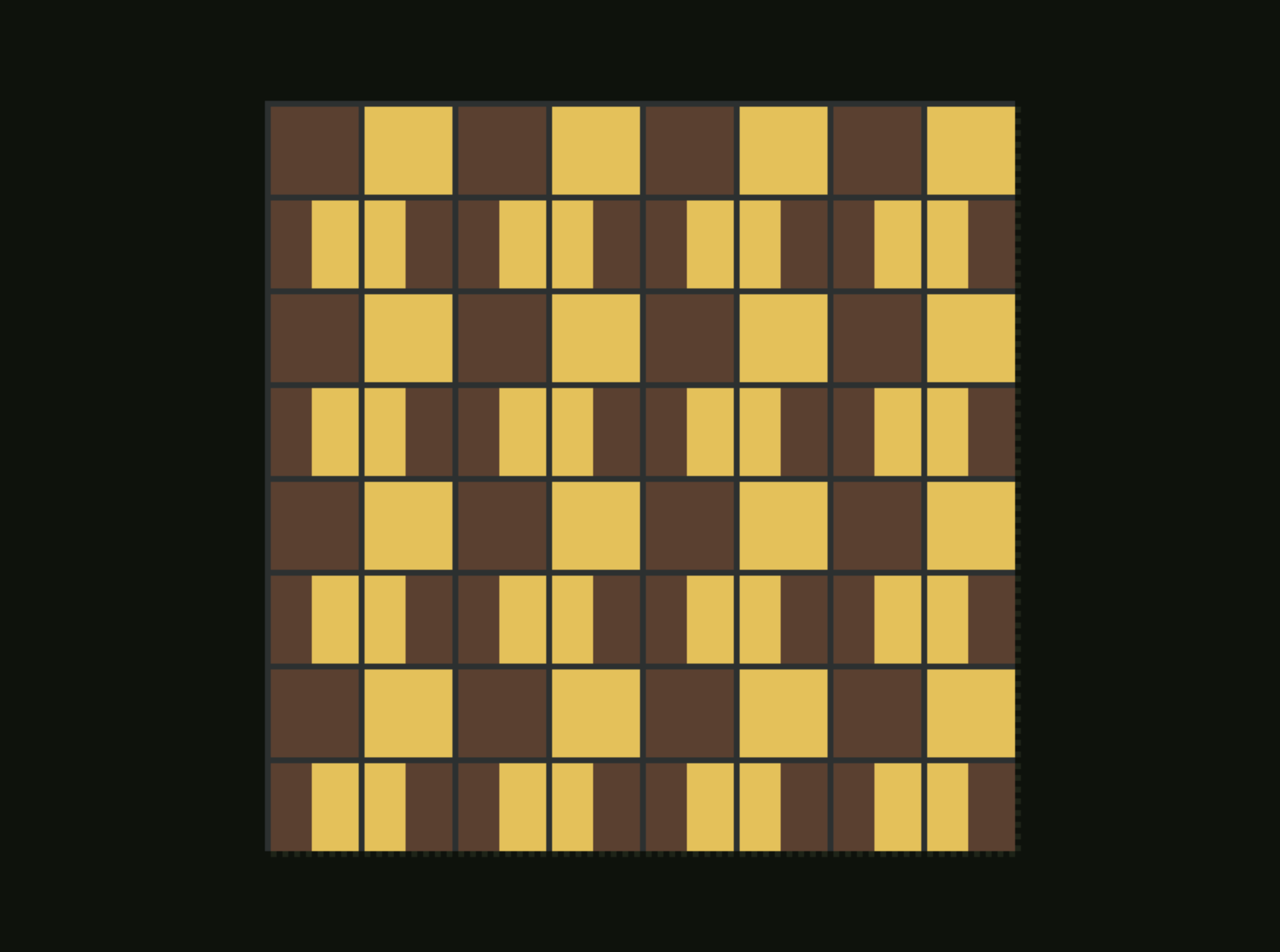
Canvas at fit zoom
Canvas
Open Canvas size in the inspector. Name is the export filename. Presets are 32, 64, 128, and 256. Width and height go from 1 to 2048.
Inspector — Canvas size is at the bottom
Pad / crop vs nearest scale
Pad / crop keeps pixels where they are and clips or adds empty space. Nearest scale resamples the whole document. Apply size commits the change; undo can reverse it.
Background
Transparent, panel, black, or white. This is the composite backdrop, not a layer. Opaque exports fill transparency with panel if the background is still transparent.
Layers
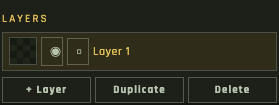
Three kinds: raster (pixels), shape (line, rect, ellipse, polygon), and image (placed bitmap). The list is top = front. Drag a row to reorder.
Layer stack — drag a row to reorderProperties and stack actions for the selected layer
Row controls
Eye hides the layer. Square lock blocks painting and transforms. Double-click the name to rename. Click selects; Properties then edits that layer.
Stack
Opacity is 0–100. Blend: normal, multiply, screen, overlay, add. Duplicate copies the layer above the original. Delete refuses to remove the last remaining layer.
Merge down rasterizes the current layer into the one below. Rasterize turns a shape or image into pixels. Flatten composites everything into one raster named Flattened.
Painting with no raster
Pencil, eraser, fill, and the other paint tools create a new raster if the selection is a shape or image, or if every raster is locked.
Color
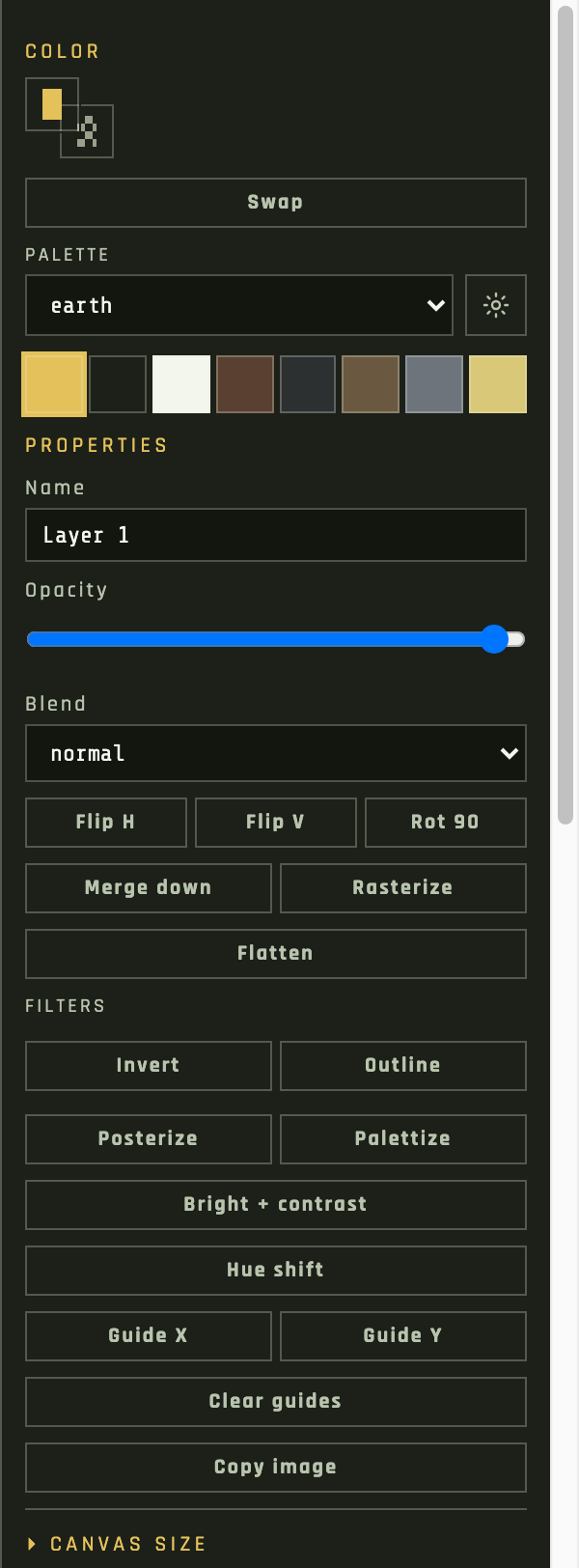
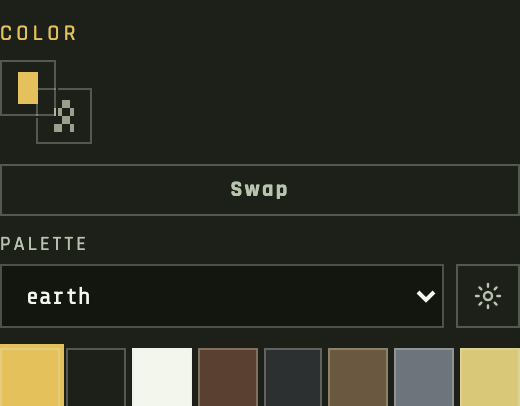
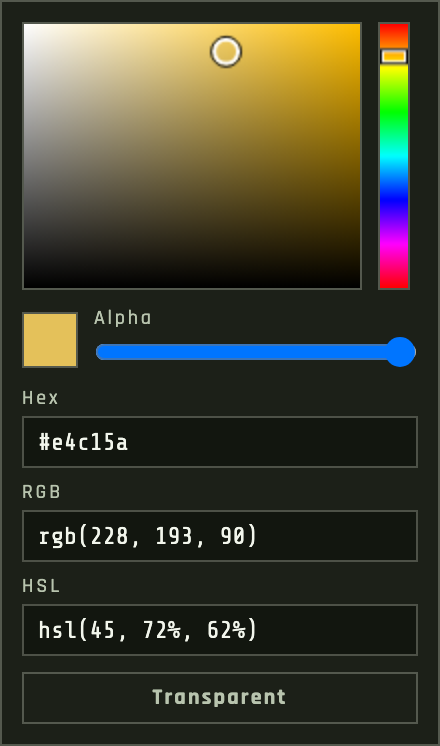
Color 1 and Color 2 sit in the inspector. Click a slot to edit it in the picker (HSV, alpha, hex, RGB, HSL, or Transparent). Swap exchanges them. X does the same.
Color 1, Color 2, and the active palettePicker — hex, RGB, HSL, alpha, Transparent
Swatches
Left-click a palette chip to set Color 1. Right-click: Use as Color 2, and on a custom palette Edit or Delete.
Sampling
Eyedropper, or Alt-click with most tools, reads the composite (not just the active layer). Left button → Color 1, right button → Color 2. Alt is ignored on Select, Wand, and Lasso because those tools already use Alt to subtract.
Shape colors
New shapes take Color 1 as fill and Color 2 as stroke. Lines use Color 1 as the stroke. A fully transparent slot is skipped, so a transparent Color 2 means no stroke.
Palettes
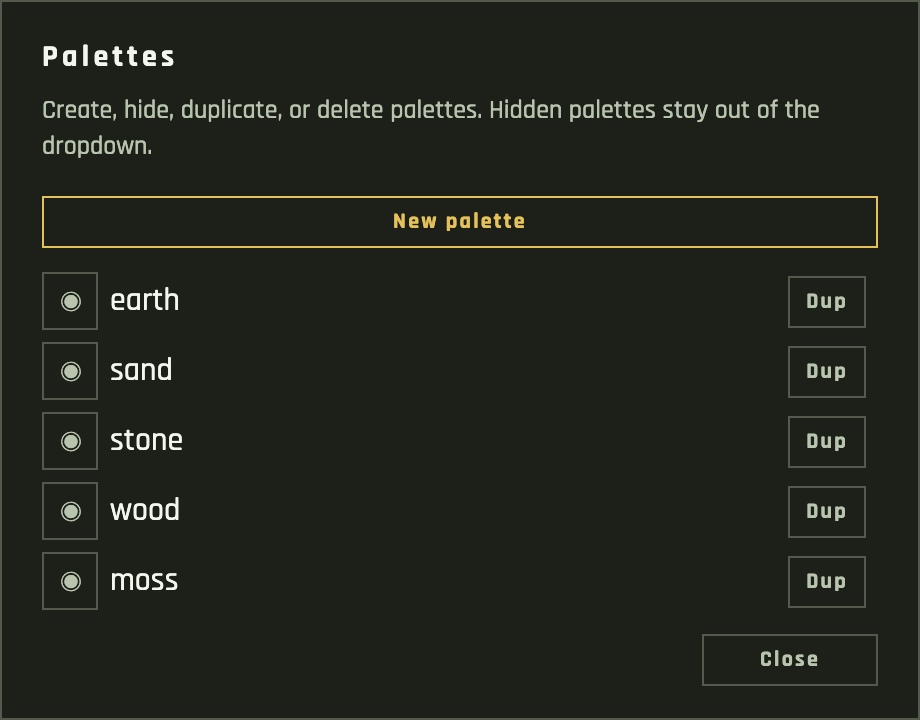
Built-ins: earth, sand, stone, wood, moss. The dropdown only lists palettes that are not hidden. The active palette is stored on the document and used by Palettize and by AI “Current palette”.
Palette manager — hide, duplicate, delete
Manage
The cog opens Palettes. New palette starts from Color 1. Dup copies any row. Custom rows can be renamed or deleted; presets cannot. Hide (○) removes a palette from the dropdown; at least one must stay visible.
Custom palettes persist in local storage, separate from the project JSON.
Selections
Marquee (M), Wand (W), Lasso (O). The marching outline is a mask: paint, fill, filters, copy, and cut stay inside it.
Select M Wand W Lasso O Move mask V
Select tools sit at the top of the rail
Add and subtract
Shift adds to the current mask. Alt subtracts. Escape clears it.
Wand
Click floods a connected region using 4-conn or 8-conn and Tolerance from the options bar. Shift+click selects every pixel of that color on the canvas (and also adds if a mask already exists).
Edit
⌘/Ctrl+A selects the whole canvas. ⌘/Ctrl+I inverts the mask. Copy copies the masked pixels (or the full composite if there is no mask). Cut copies then clears those pixels on a raster. Delete / Backspace clears the mask on a raster; with no mask it deletes the layer. Move drags a raster selection.
Paint
These tools write into a raster. Size is 1–16; [ and ] change it. Sym H / Sym V mirror strokes across the canvas. Right-click paints with Color 2.
Pencil B Eraser E Fill G Recolor Eyedropper I Dither Spray Gradient
Size, Pixel perfect, Sym H / Sym V
Pencil and eraser
Pencil at size 1 can run Pixel perfect, which drops corner pixels on diagonal runs. Right-click with a transparent Color 2 erases. Eraser always clears to transparent.
Fill and recolor
Fill floods from the click, with the same 4/8-conn and Tolerance as Wand. Recolor replaces that color everywhere on the layer (still clipped by a selection). Neither tool uses brush size.
Dither, spray, gradient
Dither stamps a Bayer 2×2 or 4×4 pattern. Spray scatters dots in a radius from brush size. Gradient drags Color 1 to Color 2; Radial and Dither are on the options bar. Shift constrains a linear gradient to 45° steps.
Shapes
Line, Rectangle, Ellipse, Polygon, and Contour create live shape layers, not pixels. Click an existing shape with a shape tool to select it; drag empty canvas to draw a new one.
Line L Rectangle U Ellipse Shift+U Polygon Contour
Color 1 is fill, Color 2 is stroke
Drawing
Shift squares a rect or ellipse, and locks a line to 45°. Polygon: click corners, Enter or double-click to close. Contour records a freehand path on drag and stores it as a polygon.
Afterward
Properties can toggle fill and stroke, change their colors, set stroke width, and type X/Y/W/H. Handles on the canvas move and resize. Rasterize when you want to paint into the shape.
Transform
Move (V) selects a layer under the cursor. Shift-click adds or removes from the selection. Raster layers have no handles — drag a selection mask instead.
Move V
Flip, rotate, merge — Properties panel
Handles
Shapes and images show eight resize handles and a rotate handle. Shift while rotating snaps to 15°. Shift while resizing keeps a square. Edges snap to the canvas, other layers, and guides.
Flip and rotate
Flip H / Flip V and Rot 90 are in Properties. Rot 90 on a raster only runs when width equals height. On shapes and images it adds 90° to Rotation.
Guides
Guide X / Guide Y drop a line at the layer center (or canvas center). Clear guides removes them. They are stored in the JSON.
Filters
Only on a raster, and only inside the current selection if one exists. Each click is a step you can undo.
There are no extra sliders. Run the filter twice or undo if the step is too much.
Filters — one click each, undoable
Previews
Tile 3×3 is the flattened texture repeated. 3D repeat is the same map on a cube, nearest-neighbor, wrapping twice per face. Neither is saved; they follow the document as you edit.
Turn on Tiled wrap on the canvas when you are fixing a seam — the cube will still show the repeat even with wrap off.
Tile 3×3 and 3D repeat — under Layers. They fill as you paint.
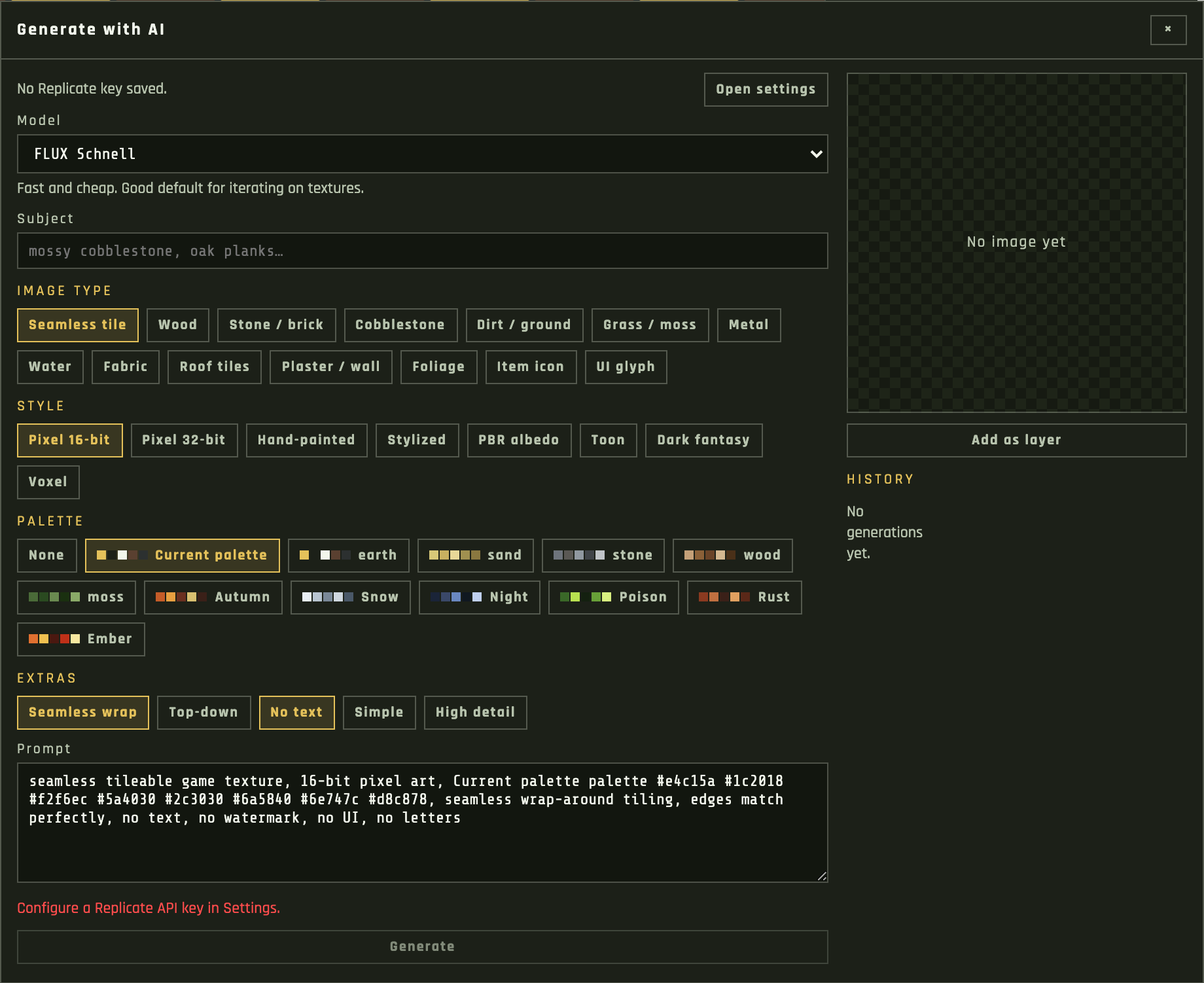
Generate with AI
Opens from the options bar. Generation goes through this app’s Replicate proxy. Put a token in Settings first; it never leaves this machine except as a request header to that proxy.
Generate with AI — chips rebuild the prompt
Prompt
Subject is free text. Image type, style, palette, and extras are chips that rebuild the prompt. Edit the prompt by hand if you want; Rebuild from chips throws that away and uses the chips again. Palette can be none, the current editor palette, a preset, or a custom one.
Models
FLUX Schnell is the default. Also listed: FLUX Dev, FLUX.2 Klein, FLUX.2 Pro, Nano Banana 2, Imagen 4 Fast, Imagen 4, Seedream 4.5, Recraft V3, Ideogram v3 Turbo, Z-Image Turbo, Grok Imagine. The last choice is remembered.
Result
Add as layer places a fitted image layer and switches to Move. History keeps the last 40 generations in IndexedDB on this browser. Click a thumb to preview. Right-click: add as layer, open in a tab, download, or delete.
Settings
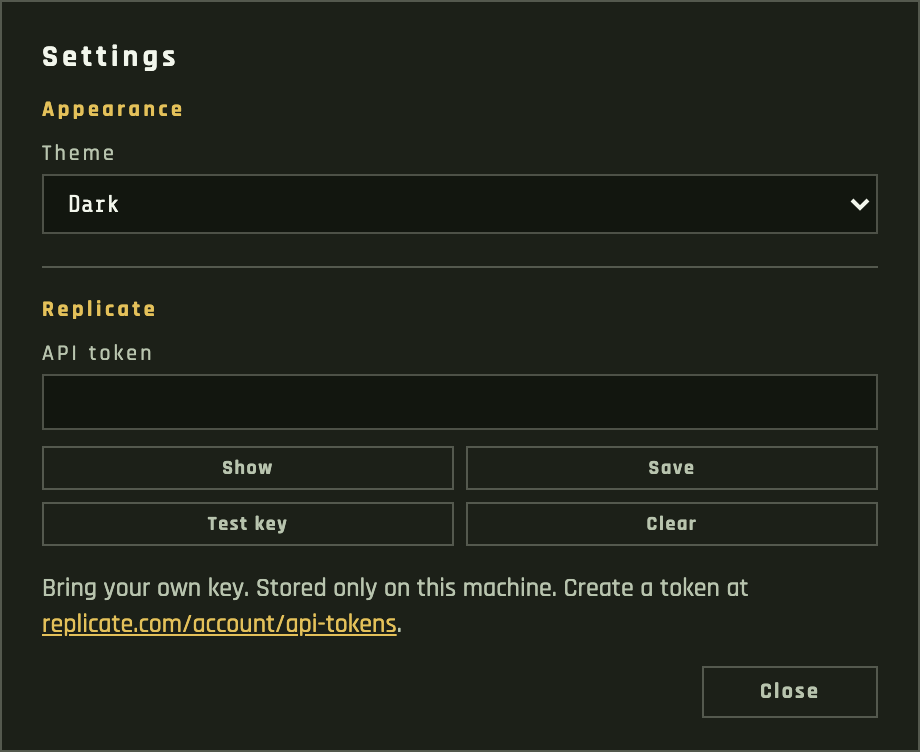
Theme is Dark or Light. The sun / moon control in this help header uses the same setting. Changing it in either place updates the other after a reload.
Settings — theme and Replicate token
Replicate
Paste a token from replicate.com/account/api-tokens. Show, Save, Test key (calls the account endpoint), Clear. Test also saves a valid key. Without a key, Generate with AI stays disabled and points here.
Shortcuts
Ignored while a text field is focused. ⌘ is Control on Windows and Linux.
Move V Select M Wand W Lasso O Pencil B Eraser E Fill G Eyedropper I Line L Rect U Ellipse Shift+U
Key
V M W O
Move, Select, Wand, Lasso
B E G I L
Pencil, Eraser, Fill, Eyedropper, Line
U / Shift+U
Rectangle / Ellipse
X
Swap Color 1 and Color 2
[ ]
Brush smaller / larger
= −
Zoom in / out
Space (hold)
Pan
⌘Z / Shift+⌘Z / ⌘Y
Undo / Redo
⌘C ⌘X ⌘D
Copy / Cut / Duplicate layer
⌘A ⌘I
Select all / Invert selection
Delete
Clear selection, or delete layer
Enter
Close polygon
Esc
Close modal or popover; else clear selection
Alt-click
Eyedrop (not on select tools)
Shift / Alt (select)
Add / subtract from mask
On this help page, ⌘K or Ctrl+K opens search. / does too if you are not typing in a field.